Showing posts with label Blogging. Show all posts

Friday, April 15, 2011

Digital Scrapbooking

When I started my personal blog in 2007, I also started dabbling in digital scrapbooking.  I liked that I didn't have to clean up my mess (or pull it out to begin with), I didn't run out of my favorite paper EVER, and when printed, the pages took up far less space.

I don't claim to be amazing (far from it actually), but I have become completely converted.  Thanks to blog printing, I still have pretty scrapbooks which are, by far, more financially sound and space-friendly.  If you're interested in trying your hand at some digi-scrapping, here are some things you'll need:

Do you have other favorite sites for supplies and tutorials?  If so, please share!  I would LOVE to add more to my list.  :)

Wednesday, March 23, 2011

Schedule Posts to Publish (When You're on Vacation, etc.)

Here's a quick way to plan ahead and keep up with your blog even 
when you are on vacation or don't have access to the internet. 

Let's say I'm going on a cruise in two weeks (I wish!) and want to make sure I still keep my blog updated with a few posts while I am gone. First off, I would make a new post like I normally would. I'd complete my post with all my pictures and info. Instead of publishing it right away, I'd go down to "Post Options" at the bottom right of my editing box. 


I'd click on that, and a whole new section would appear. On the right, I would see "Post date and time". I'd select "Scheduled at", and then I can select what day and time I would like my post to appear. 


Now when I click on "Publish Post", because I have a scheduled time, my post will be set to publish while I am sailing away and getting a tan--not the least bit concerned about updating my blog! You can use this option on as many posts as you would like.

Now go get ahead of schedule for once :)

Monday, February 21, 2011

Blogging/Etsy Tax Tips

I know it is Monday and it's usually blanket day, but I thought that this was something you would all be interested in!  And if you already filed your taxes this year, keep records for next year!
If you make money blogging or on Etsy you have to (ok.  You really should) claim it on your taxes.  Congrats!  You are a business owner! :) There are lots of deductions you can write off.  I'm not an accountant, so you should talk these over with yours but here are some general things that can help you save some money.
1. Internet related expenses.  Without the internet - there would be no blog right?  Hosting fees, domain name registrations, internet access, blogging software, picture storing, linky party subscriptions are all things that fall into this category.  Don't forget selling fees - Etsy, pay pal, Ebay.  
2. Your equipment. You need a computer right?  Any upgrades (memory and so forth), software (including tax software, picture editing).  And don't forget those cameras, sewing machines, and silhouettes!!
3. Do you tweet from your cell phone?  You can use part of your cell bill as a write off.
creative-office-design-idea-a1
4. Any new office furniture?  {My table from the trash would not count here lol}
5. Supplies/Stationary.  Supplies add up quickly.  Fabric, thread, needles, pins, rulers, cutting mats, pens, staples, paint brushes, Stamps.  Keep all of your receipts.  Your accountant can help you go through all of them.  I write notes on mine so I know exactly what project I bought each item for.  If it's something like Mod Podge I just write general.
6. Advertising, Promo and Design.  Do you advertise on other blogs.  Ask for a receipt or print off your pay pal receipt.  Advertising also include promos and giveaways! Did you have someone design your blog.  Print off a receipt! 
7. Travel and Entertainment.  Did you go to a blogging conference?  Conference fees, travel accommodations, and dining expenses can be written off. 
8. Office Space.  Do you blog from home?  Do you have an office?  You can deem that part of your home as your office and write off a small amount of your household bills for rent plus your utilities.
I know.  It's a lot!  Just remember to save your receipts!  Make small notes on them.  I put all of my receipts into a big folder and at the beginning of each new month I sort them and staple each category together.  I also try to keep Etsy/blog stuff away from my personal stuff when I check out somewhere.  For example I was buying tablecloths and towels for an order at Target but I also had milk and a movie.  Just have them ring it up as 2 transactions.  

I also keep a sales order book on my desk.  (You can get them anywhere).  Every time someone orders something or pays for advertising I write it down.  I keep all of the receipts in the book.  I also write how I got paid (pay pal, cash, check).  Keeping them in one place makes it easy to have them ready to go!    

Any tips you have for tax time?

Friday, January 28, 2011

Blog Printing

Meg did a fabulous post back in January about blogging.  As an avid blogger and blog-to-booker, I figured I'd entice you even more to print those babies out!!  I started my blog shortly after my husband and I were married and haven't regretted it as it's become our journal of sorts.  I actually wish I would have started one earlier.  Don't get me wrong, I was an avid journal keeper and scrapbooker before, but blogging has made it possible to combine the two efforts in an easier, more organized, AND MORE COST-EFFECTIVE way.  Don't believe me?  That's okay, you don't have to...yet...  Here are the three individual posts I have posted on my family blog about the books I have printed (if you're interested).  If not, continue reading here and most of the information will be re-capped.

**Please accept this apology in advance for sounding like an infomercial.  Just know I wasn't paid a single red cent for this little "advert."**

My blog books have ranged anywhere from $130-$170 and that includes the shipping fees.  I receive them about a week after ordering and have never been disappointed.  EVER.  Back in my scrapbooking days, I decided to see how much one of my uber-cute-creative books was costing me.  I had worked at a summer camp, printed all my pictures, and was ready to scrapbook the three-month adventure.  When all was said and done, it was $350+!!!!!  That's right.  For a three-month scrapbook, I was out a load of cash and had one more 12x12 3-inch binder to store.  Granted, it's wonderful, way cute, and I love looking at it constantly.  But I'll be completely gutted if my home floods or burns down because it's the only copy I have.  Oh, and I have nearly twenty other scrapbook binders just like it.

Enter:  BLOG BOOKS!  I can digitally scrapbook my pictures if I want, but don't have to.  The pictures can be added to pages just as they are as well.  And the image can be as big or as small as I'd like.  For example, we took a trip to Europe last October.  Those pages look like a full-fledged travel book with the images taking up full pages.  So pretty.  Have I mentioned that I don't have to clean up the mess after scrapbooking as well?  It's glorious.  I can print a book at the end of each year for less than half the cost of my three-month camp scrapbook.  I can print another copy if the one I have is destroyed.  It takes up less than an inch of bookshelf space (and they're 200-350 pages).  Seriously, what's not to love?  There are many companies willing to print the blog for you (Meg listed a few in her post).  I use Blurb and love it.  My cousin uses Blog-2-Print and loves it.  I am also working on a book of our wedding pictures because to have a gorgeous hardbound wedding book done by your photographer can be nearly $600!!!  That's ridiculous.  I am also planning to print out my blogged recipes into a book so I can literally throw away all those other recipe books I have cluttering my kitchen.  Having one with all my favorites in it is all I need.

Anyway, if you have blog-to-book questions, just let me know.  I'd be more than happy to answer them!

Tuesday, January 18, 2011

Valentine Backgrounds

Since my posts lately have been more informative than cute and fun, I decided to whip up some fun repeating patterns to use as Valentine backgrounds for your own blogs. 

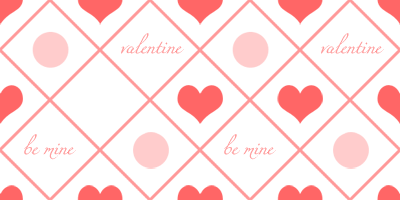
Here's one with rows of hearts that I currently have on my family blog.

Valentine Background #1


This one has a beating heart that will still beat after you add it as your background.

Valentine Background #2


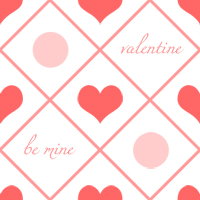
If you don't like the beating heart, you can choose this one that is similar but without the action.

Valentine Background #3

Here are some examples of how they will look on your blog.


Well, I can honestly say that I have never used any other backgrounds except my own or custom ones that I have set up. I know a lot of you get yours from other places and I don't know the method you go about doing this, but I will tell you an easy way to use mine. Don't be intimidated by my thorough post--it really is quite simple to change. I always just like to make sure to cover everything.

I wrote a previous post on how to use your own images as backgrounds that you can find HERE if want to see how to do your own. To use mine today, you will be basically using step 3 from that post. But here I have listed the instructions with the exact codes to use for each valentine background.

Go to your Template Designer. This is found under your Design tab. If you don't see the Template Designer, you need to update your blog. See the post HERE on how to update it to the latest features.

Once you get into your Template Designer, you will want to go down to Advanced, then scroll down to Add CSS. (Some templates don't have this "Add CSS" option---I use the Simple template found under the Templates section because it does allow it. You can change this easily by going to Templates found in the same column as the Advanced option and selecting Simple.)

When you click on Add CSS, there will be an empty white box to the right of it that you can enter text in.

Just copy the code of the background you want and enter it into the Add CSS box provided. You will see a preview of it to approve before you save changes.

Valentine Background #1


Valentine Background #2


Valentine Background #3


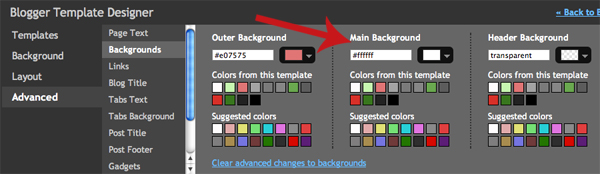
If your pattern shows up even behind all your posts and sidebar, you can fix that by changing the color behind your posts and sidebar area. Just go to Advanced under your Template Designer, then Backgrounds. The Main Background can be changed to a plain color so the pattern does not make your posts and sidebar items hard to read.

And to delete your background, simply go back to the Add CSS box you entered the code in and delete the code and save :)


I hope you like your new background! If I get enough comments **hint hint :)**, I'll keep making fun backgrounds for each holiday :)


Linked up with:
Today's Creative Blog 

Tuesday, January 11, 2011

Blogging 101 Part 2: Posting & Comments Tabs

Welcome to Blogging 101: Part 2! Today I am going over the Posting and Comments tabs. I did consider explaining all the tabs in one post, but that would make for a veeerrrry long post. (Have you checked out all the options under the Settings tab?!)

To get to your tabs: If you go to your blog URL, and sign in on the upper right hand corner, you will be able to log into your dashboard. Your dashboard will look something like this.

You will notice the different options you can click on.

If you click on New Post, Edit Post, Comments, Settings, Design, Monetize, or Stats, you will see some tabs on the upper left of the page. You will see that these tabs are labeled with the same names. You can see what tab you are on, and easily go to another tab if you'd like. You will also see View Blog to the right of the tabs, which you can always click on to view your live blog.

There are three options under the Posting tab: New Post, Edits Posts, and Edit Pages.

If you've gone over Part 1 HERE, you know all about the New Post option where you will go to make each new post.


If you go to Edit Posts, you will see a list of all the different posts you've previously made as well as any labels that you have made to categorize your posts.


1. Your post labels, click on one label and it will show all the posts with that label.
2. Type in a word to search and all the posts with that word will show up.
3. If you have selected a box for a post (shown as #8 on here) you can add a label to a post without actually going into the Edit mode. Select the post box you want to create a label for and scroll down here to select a label, or make a new label for it.
4. Quickly select All the posts or None of the posts.
5. You can narrow the posts shown by All, Drafts, Scheduled, Imported, or just Published.
6. If you want to view more posts, you can select a higher number here.
7. Go to older posts or the oldest posts.
8. Click on this box to select the post you want.
9. Go into Edit mode for this post.
10. This will take you to your actual post.
11. Click anywhere on the title or label, and it will show you a quick words only view of the post without taking you off of this screen.
12. Shows you whether this post has been posted yet (published), is in progress (draft), scheduled to post later, etc.
13.Click here to see the comments that go with this post.
14. This shows you when the post was or will be posted.
15. This shows you who created the post.
16. Click here to delete your post. It will ask you if you are sure you want to delete it, so don't fear if you accidently click here.

Your next option under the Posting tab is Edit Pages. This option is if you want to make a page for your blog that doesn't show up as a post, such as an About Page or a Contact Page. Blogger will also supply a menu bar with your page links to go wherever you'd like if you don't choose to link manually when you save your page. You can select where to put your menu bar under the Design Tab, which we'll get to later. I also wrote a post earlier that shows you how to make your pages as well as your own decorative buttons to link to your pages. You can find that post HERE.

Your Comments tab has only two options under it, Published and Spam.


 It's kind of like an email filter--if a comment is actually from a real commenter, it will go to your published section, or will go there after your approval if you've chosen to approve it before it is published (you can select to approve comments before they are published under the Settings tab). If it is not a legitimate comment, then it will go to your spam section. You can decide to delete comments, etc. in this Comments section. It is a place where you can quickly see if you have new comments on any post, old or new. The comments are listing with the most recent comments at the top.

Hope this helps all you beginners, and that you are all loving blogging!


Monday, January 3, 2011

Blogging 101, Bring in the New Year with a Blog

Since it is a new year, I have decided to do a quick guide to starting a blog. It's a great time to start one, if you haven't already. If you do have a blog already, make sure you are updated to the latest features! See the steps listed at the bottom of this post after step 6 to learn how to update your blog. If you are just starting a blog, you will automatically be making your blog with the newest features, and there is no need to upgrade.

One fun thing to do with your blog (especially a family blog), is to compile it into an actual bound book of blog posts for the whole year. There are a number of places to do this: Blurb, Bookemon, Blog2Print, and more.
 
Image from HERE 

I was recently talking to one of my friends who told me that she loves to look at others' blogs, but has no idea how to do her own. So for those of you like my friend, here we go!

With my post this week, you will be able to create a blog, and make a blog post. Stay tuned for my next Monday's post that will help you understand a few more features available to you.

1. When you view a blogger blog like ours, you will notice that up in the navigation bar, there is a spot that says "Create Blog". Click on that.
***After you have completed all of these steps and made your own blog, you can always click on the "Sign In" option in this same area where you will be able to sign in and access to edit your own blog.

2. It will take you to a page that you can fill out to get started. If you already have a gmail account, you don't need to fill anything out here--just go ahead and sign in with the sign in link on the page, then fill out the information it asks for.

3. After you have created your account, you will want to name your blog. You can change the name of your blog whenever you want throughout your blogging experience, but changing your blog address (URL) isn't as easy. Pick an address that resembles what you want to blog about. If you click on "Check Availability" Blogger will let you know if the address you have picked is available. When you've got the address you want, go ahead and click on "Continue".

4. The next step is to choose your template. Go ahead and pick one that you like. The biggest difference in the templates is how they look, but if you want to get things more personalized and custom, then this won't make too much of a difference. My most recent blogs have been based on the "Simple Template", but you can pick whatever you want.

5. After you've picked a template and click on "Continue"---your blog is live at the address(URL) you've selected and you can go ahead and click on "Start Blogging"!

This is the page where you will make each post.

Here is a quick guide to the buttons and features you can use on this page. While editing you can select any text throughout your post and add certain features to that text by using many of these different options. You can also click and on pictures that you have added to your post and apply these features to them as well.


1. Undo your last edit
2. Redo your last edit
3. Font choice
4. Text size
5. Bold your text
6. Italicize your text
7. Underline your text
8. Strikethrough your text
9. Color of font
10. Highlight text and color of highlight
11. Make text into a link. Select the text you want to be a link then click here to choose where it will link to. You can also select images and make them into links.
12. Add an image. On the left you will see that you can select to upload an image from your computer, your blog, Picassa Web Albums, or a URL of an image you found. While one is uploading, you can go ahead and select more images from your computer by clicking on "Choose File"--as many as you like. The images will show up in the box when they are uploaded. Blogger just made this option so much more convenient! If you accidently delete a picture after you've inserted it onto your post, you can just go back to this option and your image will still be there to reselect. Also, after you insert your images, you can control the size of each image as well. Just click on your image and you will see the options that you can click on that appear below your image. Your blog must be updated for some of these picture options.
13. Add a video (you can insert a movie to upload from your computer, YouTube, your own YouTube videos).
14. Insert a jump break. This is if you want only part of your post to show. It will show up until the jump break is inserted and then give your readers the option to "Read More" You must activate it in the Settings tab (More of how to activate it in next week's post)
15. Text alignment or picture alignment
16. Add a numbered list
17. Add a bulleted list
18. Add a quote (this will separate the text you've selected from your paragraph and center it).
19. Remove formatting (select the text that you want the format of your text to no longer be there, such as no longer underlined or bold, etc.)
20. Check Spelling
21. If you click on "Post Options" some options will appear that will allow you to decide whether or not you want to allow viewers to comment on your post, customize some HTML options (you probably won't mess too much with this), and schedule your post to go live at a specific time. I love this last option because especially with this blog, I can make multiple posts and schedule them for the day that I am assigned to post on. After you are done with your post, but don't quite want it live yet, you can schedule your post and then hit publish post. It will save and tell you when your post will go live.
22. Click "Publish Post" when are finished with your post and want it to show up live on your blog (it will not show up live right away if you have it scheduled to appear at a different time)
23. Click "Save Now" periodically to save your post as you create it. If you don't finish your post right away, this saved post can be edited later.
24. Click "Preview" to see how your post will look on your blog without publishing it yet.
25. Here you can enter in labels that your post fits under such as "Summer", "Crafts", "Christmas", etc. This way you can create groups of posts that fit under certain labels.
26. Here is where you can access the HTML code of your post. You can insert any HTML code here that you might grab from any other site for a button, etc. If you click back to the "Compose" tab (Right next the the "Edit HTML" tab) after you have entered your code in under the "Edit HTML" tab, you will see how the code you pasted in is interpreted to show up on your blog. Most likely you won't have to use this too often if you consider yourself a beginner blogger.
27. Insert what you want your post to be titled.


6. After you have entered your post, you can go ahead and click on"Publish Post" and then view your blog. You will see your post live on your own new blog URL!


***If you are already a blogger but don't see some of the features listed here on your editing options, it's time to update your blog! Blogger just gave us new features !

First, go to your "Settings" tab. Then to "Basic".

Scroll down until you get to "Select post editor" and select "Updated editor (Recommended)"


Then click on "Save Settings". Your blog is now updated!

Saturday, January 1, 2011

Update Your Blog to the Latest Features

Blogger periodically updates blog features to help make blogging easier! Make sure your blog is updated to the newest features.

First, go to your "Settings" tab. Then to "Basic".

Scroll down until you get to "Select post editor" and select "Updated editor (Recommended)"


Then click on "Save Settings". Your blog is now updated!

Monday, December 13, 2010

Use your Own Image as Your Blog Background

It's always fun to have a unique or custom background for your blog!

Here is how you can use any image you want as your blog background by using the Template Designer provided by blogger. You don't have to search and change any HTML to do this--you will just copy and paste the code I will give you where directed. If you digital scrapbook, or like to mess around with photo editing software, it's always fun to use an image that you made especially for your blog. But if you just want to go with a fun pattern you found, that works too! HERE is a great place to find some pattern images to use for free!


1. Select an image you want to use as your background. This image can be from the web or from your computer. It's best to save the image to your computer first before using it--just because you never know when the image will not be hosted in the same location anymore.  But if you are not so worried about that, you can just use the  original URL where you found your image, which can be used as the URL OF YOUR IMAGE.

You can choose a repeating pattern that is a smaller image like this:

300 pixels x 300 pixels
(shown actual size)

If you choose an image like this, make sure the design is the size you want, and understand that this design will repeat itself all over your background. I used this method for our Christmas blog design.


Or you can choose a larger image with borders that fit your blog, like this:

1450 pixels by 1100 pixels
(click on image and zoom in to see actual size)

2. Upload your image to an image hosting site and get its URL (a.k.a. Direct Link).

If you are using a smaller image that will repeat itself, you can go ahead and upload your image to Photobucket or any other online image hosting site. BUT Photobucket only allows your images to be saved up to a certain size, so if you are doing a larger image with a border to fit your posts, sometimes Photobucket will actually host the image smaller than you want. I was only able to get the larger image that I have used as an example on this post to save in Photobucket as 1023 pixels by 776 pixels, when the actual image size is 1450 pixels x 1100 pixels. This can result in the background not aligning like you want. Because of this, HERE are some instructions on how to use blogger/blogspot to host your image at its original size.

Once your image is hosted, make sure to get the  URL OF YOUR IMAGE. In Photobucket, once you upload your image, you can select and copy the DIRECT LINK, which is the same thing as the URL OF YOUR IMAGE. 

3. Once you have the URL OF YOUR IMAGE, you will go to your Template Designer. This is found under your Design tab. If you don't see the Template Designer, you need to upgrade your blog. See the end of this post HERE to find out how to update it. 

Once you get into your Template Designer, you will want to go down to Advanced, then scroll down to Add CSS. Some templates don't have this "Add CSS" option---I use the Simple template found under the Templates section because it does allow it.

When you click on Add CSS, there will be an empty white box to the right of it that you can enter text in.

If you are using a small image with a repeating pattern, here is the code you will be using:


Just copy and paste this code into the Add CSS box provided. 
Make sure to insert the URL OF YOUR IMAGE within the code where indicated.


You can go ahead and jump to step 4 if you like what you see.

If you are using a larger image, you will want to use this code:

Copy and paste this code into the Add CSS box provided, making sure
to insert the URL OF YOUR IMAGE where indicated.


I have this code set to my preferences, but you may want some things 
different in your own background image.
This is why I color coded some of the words in the code preview. 

Here are some things you can change if you would like:

no-repeat:
This word can be changed to "repeat", and your image will repeat itself

fixed:
This can be changed to "scroll" and your background 
will move with your blog page when you scroll down your blog.

center:
This can be changed to "top" or "bottom". This indicates the vertical
position of your image.

center:
This can be changed to "left" or "right". This indicates the horizontal
position of your image.


4. You will see the preview of your blog in the preview mode below with your new background. As you make changes with your code, you will see the preview change as well. 

If things are still not aligning like you want, you can also adjust the width of your blog to help your background fit a little better. You can do this in your Template Designer under Layout, then click on Adjust width.


Once you like what you see, save the these settings to your blog by clicking on Apply to Blog in the upper right corner of your screen.

There you go! Have fun with your own new background! If you have any questions, just let me know!


Oh...I forgot to add, if your pattern shows up even behind all your posts and sidebar, you can fix that by changing the color behind your posts and sidebar area. Just go to Advanced under your Template Designer, then Backgrounds. The Main Background can be changed to a plain color so the pattern does not make your posts and sidebar items hard to read.

LinkWithin

Related Posts with Thumbnails